Org Chart & Direct Reports Task Management
Managing a team shouldn't mean hunting through spreadsheets or asking "what's on your plate?" in every standup. Our new Org Chart View gives partners and managers instant visibility into their team's workload — and the tools to balance it.
What It Does
See Your Team's Tasks in One Place
Switch to the Org Chart view and instantly see everyone who reports to you, along with all their assigned tasks. No more guessing who's overloaded or who has bandwidth.
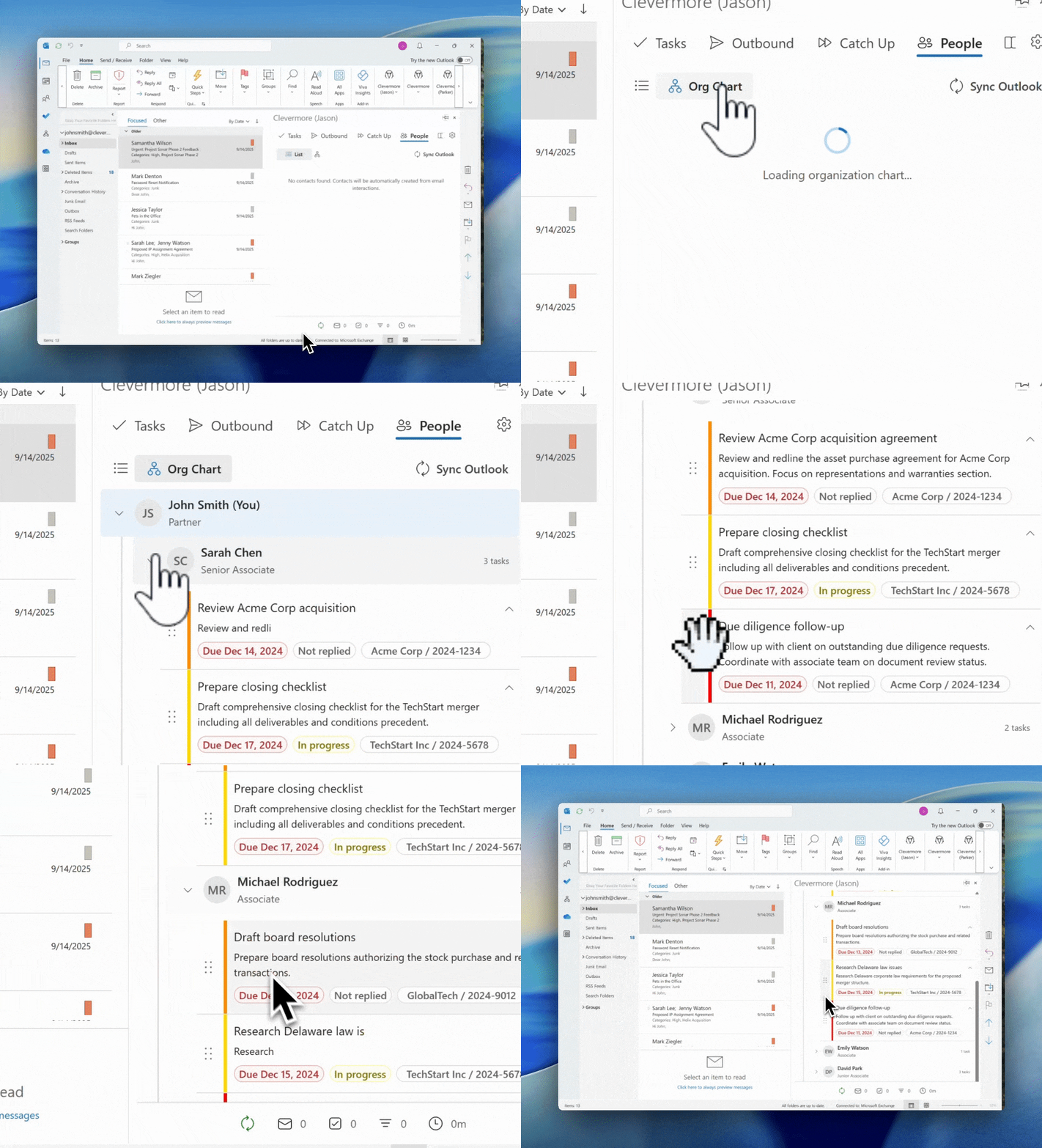
Drag-and-Drop Task Reassignment
Spot an associate drowning in due diligence while another has capacity? Drag the task from one person to another. The reassignment happens instantly — no forms, no emails, no context switching.
Workload at a Glance
Each team member shows a task count badge, so you can immediately see who's carrying the most weight. Click to expand and see the full details — deadlines, urgency, client matters, and status.
What We've Been Hearing
Partners and managers have been solving this problem with workarounds that create more work:
- Repetitive check-in emails — "Quick status update on the Acme deal?" sent three times a week, interrupting deep work and cluttering inboxes
- Excel spreadsheets — Manually maintained workload trackers that are outdated the moment they're saved
- Word document progress trackers — Shared docs that nobody remembers to update, leading to surprise missed deadlines
These approaches all share the same problem: they require manual effort to stay current, and they're disconnected from where the actual work happens.
The Org Chart view eliminates the busywork. Your team's tasks are already in Clevermore — now you can see them organized the way you actually think about your team.
Key Features
- Hierarchical tree view — Partner → Senior Associates → Associates → Junior Associates
- Task details inline — See deadlines, urgency scores, and client/matter info without leaving the view
- One-click expansion — Drill into any team member's full task list
- Integrated with Azure AD — Your org structure is pulled automatically from your company directory
- Real-time updates — Reassignments sync instantly across the team
How to Use It
- Navigate to the People tab in Clevermore
- Click the Org Chart toggle in the toolbar
- Click any team member to see their tasks
- Drag tasks between team members to reassign
Have feedback or ideas? Email us at support@clevermore.ai — we'd love to hear from you.