Clevermore in your pocket
It isn’t in the App Store or Google Play. Add app.clevermore.ai to your home screen and it opens full screen, with the same tasks and matters you see in Outlook.
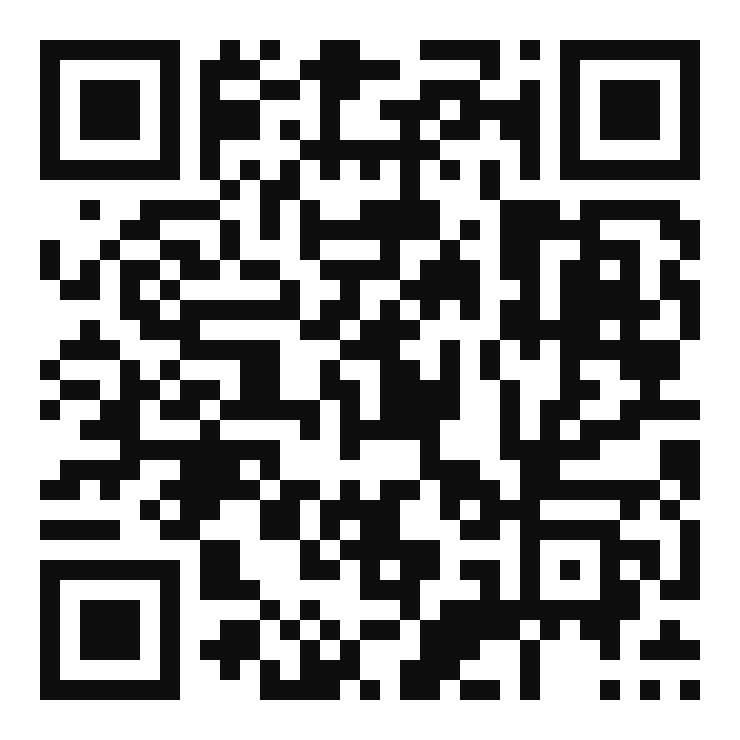
Point your phone’s camera at the code. In Clevermore on your computer, Settings → Get it on your phone shows the same code.
iPhone or iPad: use Safari
- Open app.clevermore.ai in Safari. Scan the code with your camera, or type the address.
- Tap the Share button (the square with an arrow pointing up).
- Scroll down and tap Add to Home Screen, then Add.
- Open Clevermore from your home screen and sign in with your work account.
Opened it in Chrome or another browser? Those can’t add Clevermore to an iPhone home screen. Copy the address, open Safari, paste it into the address bar and start again from step 2.
Android: use Chrome
- Open app.clevermore.ai in Chrome. Scan the code with your camera, or type the address.
- Tap the ⋮ menu in the top-right corner.
- Tap Add to Home screen or Install app, then confirm.
- Open Clevermore from your home screen and sign in with your work account.
If your firm manages your phone
Some firms don’t allow apps added from a browser, or ask you to use Microsoft Edge. If Add to Home Screen is missing or the icon won’t open, use Clevermore in your phone’s approved browser at app.clevermore.ai, and ask your IT team what they allow.
Still stuck? Ask the assistant inside Clevermore, or email support@clevermore.ai.