Getting Started
Five-minute setup. Requires Clevermore installed by your IT team in Outlook.
Open Clevermore from the Outlook ribbon
On Outlook’s Home ribbon, click Home in the Clevermore group.

Pin Clevermore and run setup
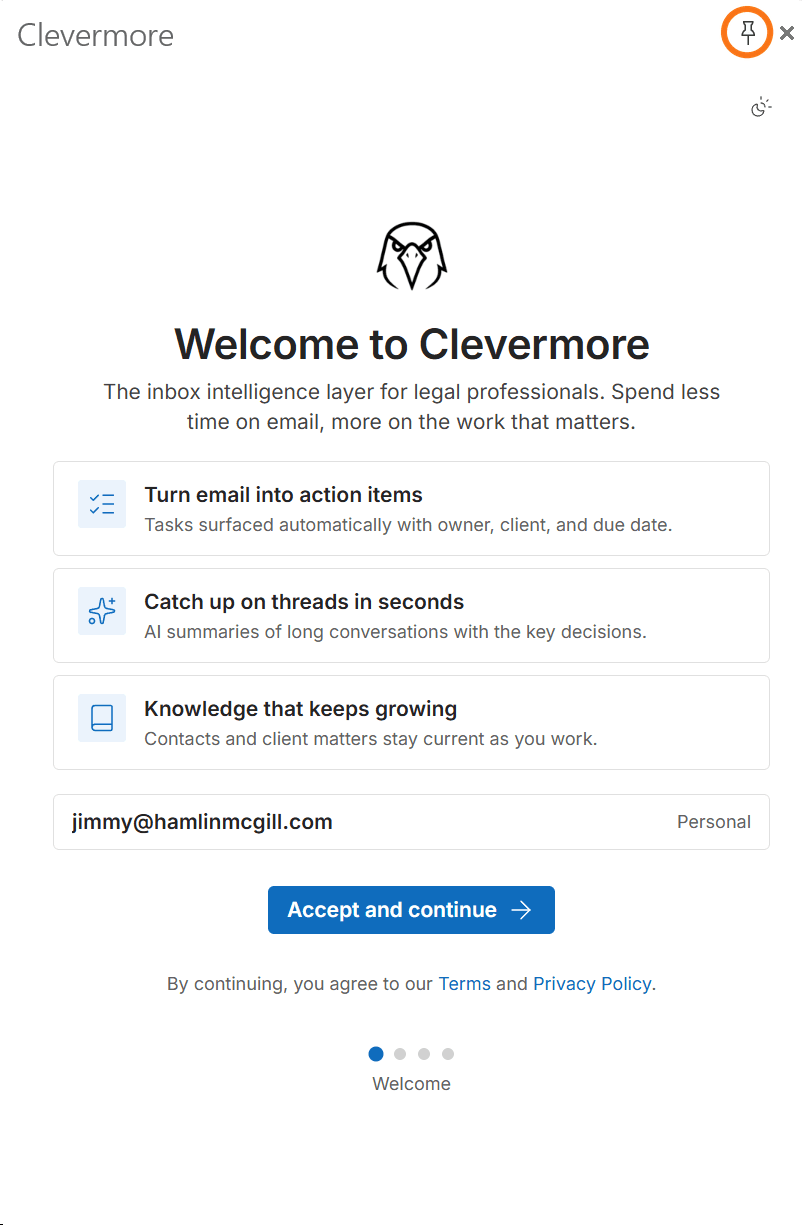
Click the pin so Clevermore stays open as you move between emails, then follow the setup steps.
›Read more: what each setup screen asks
- 1Welcome
Confirm it’s your work account and accept.
- 2Profile
Clevermore drafts a short profile from your recent email: your role, what to focus on, what to ignore. Fix anything that’s off. It shapes which tasks you get.
- 3Your firm’s extras
Some firms also ask how your drafts should sound or how Clevermore files email.
- 4You’re set up
Choose how far back to read (a day, three days or a week), which folders to scan, and whether to tag email in Outlook. All of it can be changed later in Settings.

Setup runs on a computer. Once it’s done, new email is handled as it arrives. How your data is protected: Trust Center.
Manage your task list
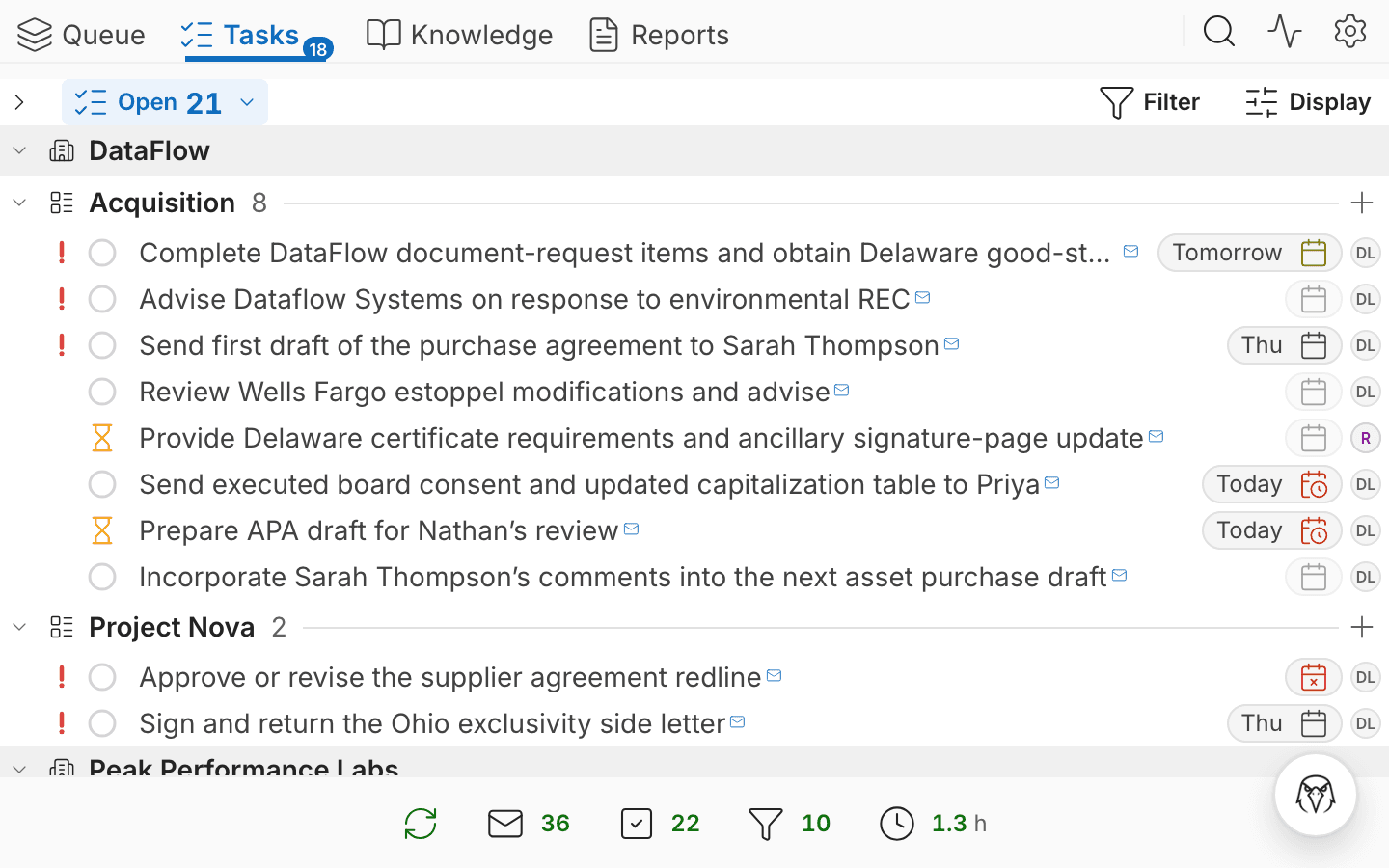
Clevermore turns your email into tasks, grouped by client and matter. Open one to reply, snooze it or mark it done.
Chat with the Clevermore Assistant
Click the round Clevermore button at the bottom right. Ask about your work, or how to do anything in Clevermore.
 Clevermore
Add Clevermore on your mobile device
Scan with your phone’s camera, then add Clevermore to your home screen.
Still stuck? Ask the assistant inside Clevermore, or email support@clevermore.ai.